
Keep a master and a working copy
Download the actual chart file, including its key and instructions. A picture saved from a shop preview may omit pages or have symbols too blurred to enlarge usefully.
Use your file app’s duplicate command and name the copy something recognizable, such as Little-border-progress.pdf.
On iOS 26 and iPadOS 26, Preview provides built-in PDF annotation. Apple documents Preview on iPad and Preview on iPhone. On an older system or in another PDF app, follow that app’s instructions for finding its annotation tools.
Set up the view before picking up the needle
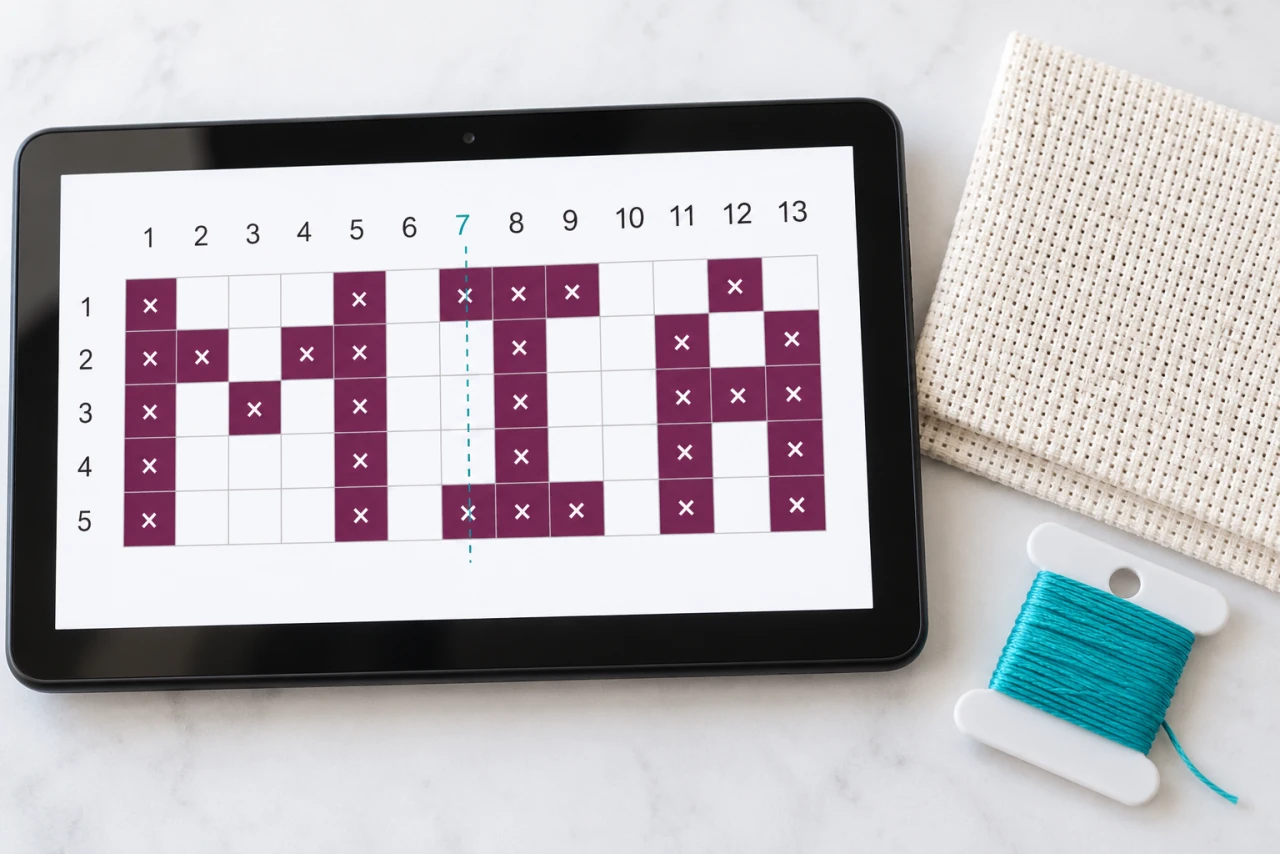
Open a page with the grid and zoom in until you can distinguish two similar symbols. Keep enough surrounding cells visible to recognize a local shape and find the printed row or column references.
You can work in a smaller window on a phone, but moving around more often makes reference points especially useful. A tablet in landscape may show a broader section; portrait may suit a tall motif. Try the actual page in both orientations before choosing.
Keep the thread key accessible. You might use a separate permitted copy of the key, another window where supported, or a printed key beside the device. Do not rely on the cell's displayed color to remember a subtle thread number.
Place the device on a stable support where a turn of the hoop will not knock it over. Keep the screen clear of needle points and scissors.
Practice the gestures on a few cells
First, leave drawing mode off and try moving and enlarging the chart. Then enter Markup or the app's annotation mode and add a small mark on the working copy. Check whether your finger now draws where you expected it to pan.
On a compatible iPad, Apple Pencil can provide a separate way to draw. Apple Pencil does not work with an iPhone. Try the gestures in your app: finger input, Pencil settings, and drawing mode can change whether a touch moves the page or draws on it.
Try a low-opacity marker or a thin shape that leaves the original symbol readable. Ordinary text highlighting may work only when the PDF contains selectable text; a scanned or flattened symbol grid may need a drawing annotation instead.
Undo the trial, then add a mark you want to keep. If adding or undoing the first mark was difficult, adjust the tool before recording an entire section’s progress.
Check that the mark was saved
Leave the file, then reopen the working copy from its stored location. Confirm that the mark remains.
If you plan to use the chart without a connection, test that now: make the file available locally, temporarily turn off the network, and reopen the chart and key. Check that every chart page and the key open offline.
If you stop with unfinished crosses, leave a short note showing where their top legs should resume. The progress-marking guide gives an example.
Back up your marked chart
Use the app's save, export, or share function to retain a backup of the annotated working file. Some exports flatten marks into the page, so keep the editable working file if you want to undo them later.
If you move between devices, decide which file is current. Do not mark two independent copies in parallel and assume their changes merge.
Specialist pattern applications may offer automatic symbol search and completion tracking, but they can require particular file formats. Confirm compatibility with your actual chart before relying on those features.